
Linked copies
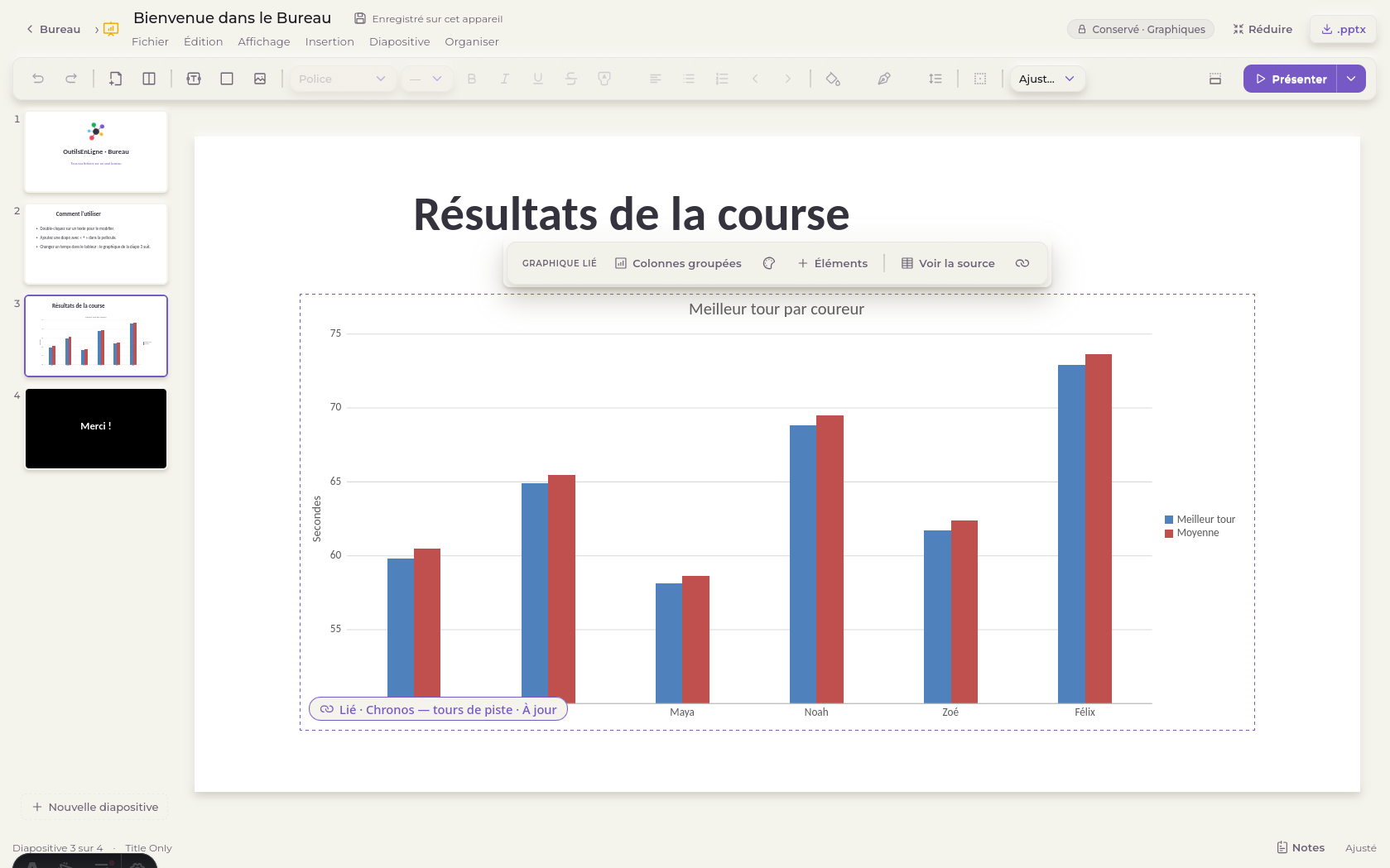
A chart, a range of cells or an image can have copies elsewhere on the desk. The copy follows its source; a thread joins them.
“Link into…”
- A chart: open the spreadsheet, select the chart, “Link into…”.
- A range: select the cells, “Link into…”; the copy is a real table.
- An image: select it on the desk, “Link into…”.
Then choose the presentation (new slide or last slide) or the document (at the start or the end). The copy arrives at once and a thread appears on the desk.
A thread’s states
| Thread | What it means |
|---|---|
| Violet, dashed | Up to date: the copy shows the source (“En direct” mode, the default). After a change, the copy follows within a second. |
| Amber | Late: in “Manuel” mode, the source has changed; “Update” whenever you want. |
| Grey, tight dashes | Frozen: a snapshot taken on a date; the copy won’t change any more. |
| Red, broken | Broken: the source was deleted; the copy keeps its last value. |
Click a thread’s label (or Tab to it, then Enter): the mode, what the copy carries, “Update”, open the source or the copy, cut the link. “Desk threads” (Ctrl Shift L) lists them all.
Editing a copy
A copy keeps its own size and place. Its style changes (a restyled table, an image retouched on its own) stay on the copy and are listed in the link; “Apply to the source” carries them over to the original. Values always come from the source: to change a number, change the spreadsheet.
On export
A downloaded document or presentation holds its copies as ordinary charts, tables and images, at their last value. The link itself stays on the desk.